
Creating a development or staging app
Create a separate ToDesktop app for each non-production environment. This keeps its builds, releases, download links, and update channel separate from your production app.
An Environment Group connects these apps so they can share subscription and code-signing resources. The production app is normally the Main app, while the other apps can be labelled Development, Staging, Beta, or any other relationship that fits your release process.
Create an Environment Group
- Open the app that should be the Main app (usually your production app).
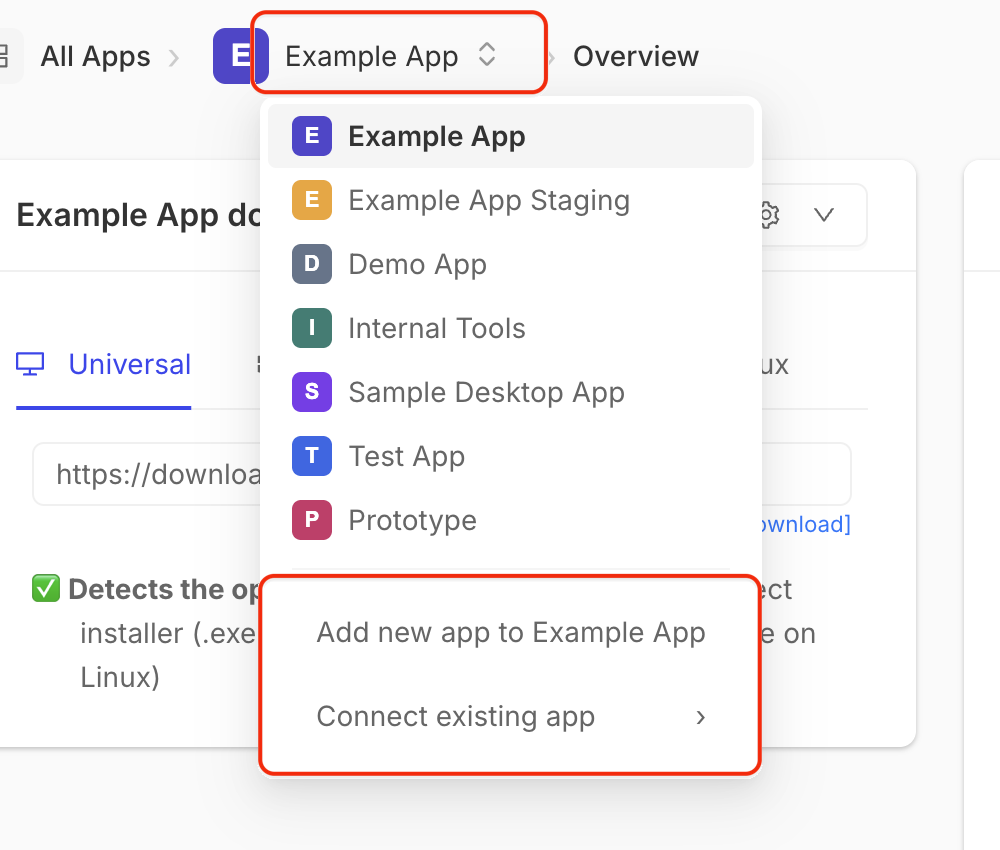
- Select the app's name in the breadcrumb at the top of the page.
- At the bottom of the app menu, choose one of the following:
- Add new app to <app name> creates a new app using the Main app's configuration as a starting point.
- Connect existing app adds an existing, standalone Electron app without replacing its current configuration.
- Enter a relationship such as
Development,Staging, orBeta. When creating a new app, also enter its app name.
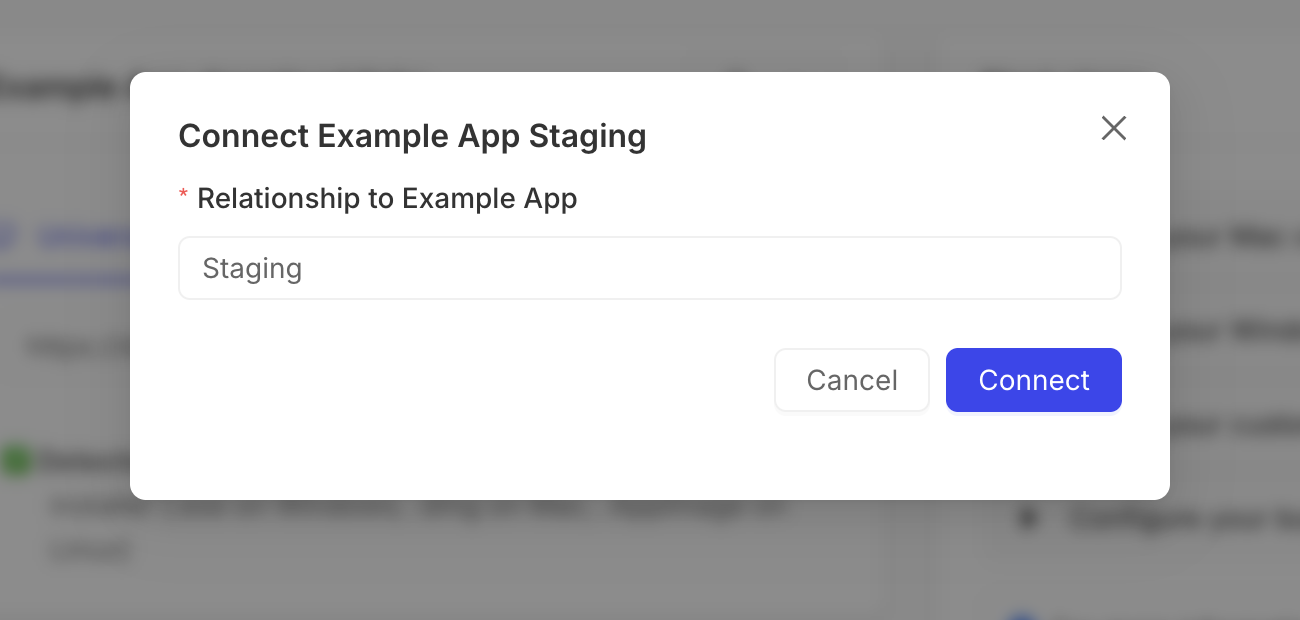
- Select Create or Connect.
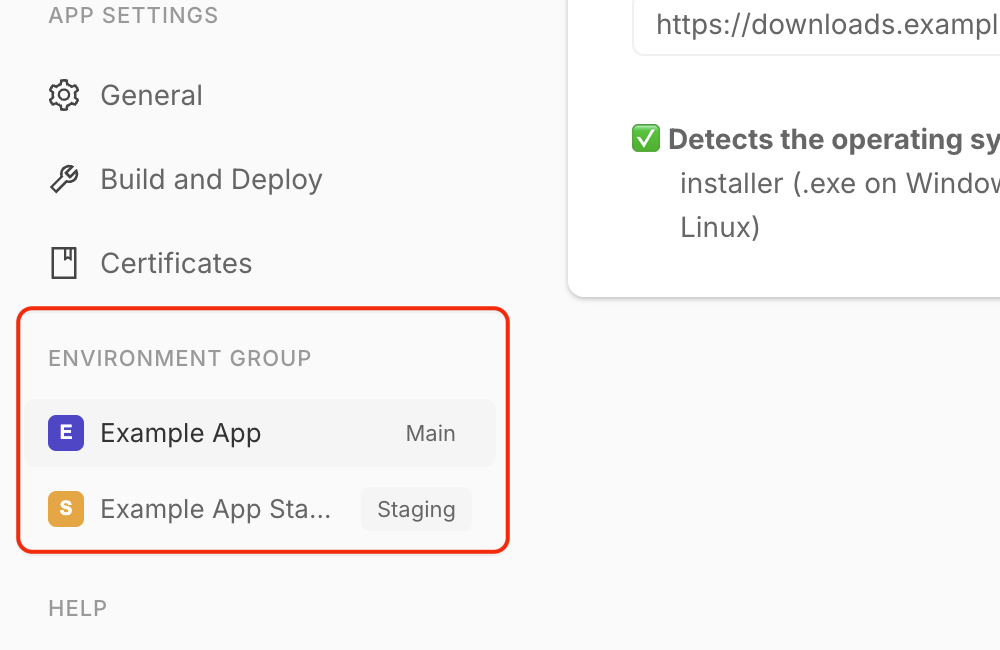
Once the group contains more than one app, an Environment Group section appears in the sidebar. Use it to see which app is Main and to switch between environments.
Only standalone Electron apps are offered under Connect existing app. An app that is already a child or Main app in another Environment Group will not appear in the list.
What is shared between apps
Apps in an Environment Group inherit the following from the Main app:
- Subscription and plan access - child apps use the Main app's subscription and available features.
- Code-signing and notarization data - child apps use the Main app's Mac and Windows certificates, so certificates do not need to be uploaded and managed for every environment.
Manage these inherited resources from the Main app. Each child app still has its own app ID, configuration, builds, releases, download links, and analytics.
When you use Add new app, ToDesktop copies the Main app's current app-level configuration, including its build artifact choices, into the new app as a starting point. You can change those copied settings without changing the Main app. Connect existing app preserves the existing app's configuration.
Create a configuration for the new environment
The Environment Group controls resources in the ToDesktop web app. Separately,
the extends property lets one local todesktop.json configuration reuse
another. Use both features to keep shared settings in one place while targeting
the correct ToDesktop app for each build.
Open the child app in ToDesktop and copy its app ID from the app actions menu on
the Overview page. Then create a file such as todesktop.staging.json next to
your production todesktop.json:
{
  "extends": "./todesktop.json",
  "id": "your-staging-app-id",
  "appId": "com.example.myapp.staging",
  "icon": "./staging-icon.png",
  "packageJson": {
    "name": "myapp-staging",
    "productName": "My App Staging"
  }
}
Properties in todesktop.staging.json override the corresponding properties in
the base file. The id must be the child app's ToDesktop ID. Use a unique
appId and package name so production and staging builds can be installed on
the same computer.
Add a script to your project's package.json that selects the environment
configuration:
{
  "scripts": {
    "build": "todesktop build",
    "build:staging": "todesktop build --config=./todesktop.staging.json"
  }
}
Running npm run build:staging now creates a build for the staging app. Its
subscription and certificates come from the Main app, while its builds and
releases remain separate.
Automating development and staging releases
After you have a separate app and config for a non-production release channel, you can point CI at that config:
todesktop build --config=./todesktop.staging.json --async --webhook https://example.com/todesktop-build-finishedThe webhook handler can then release the successful build with the
releaseBuild API. Enable Allow releases
without a security token for each development, staging, beta, or nightly app
that CI should be allowed to release.
See Automating releases from CI for the full async build and release workflow.
If you need any more support with managing multiple applications, please send us an email at hi@todesktop.com.